Projects
The Projects screen is the first thing you see when you open Vibely. It holds everything you have made, and the templates to start something new.
A project is one video in the making: a song, an optional background video, and the layers and effects you add on top. Vibely saves a project by itself as you work, so there is no Save button. A project is kept as soon as it has a song.
Until you close it, a banner at the top, New: the Vibely Handbook, opens this handbook with Open Handbook. Its X hides it until you next open Vibely.
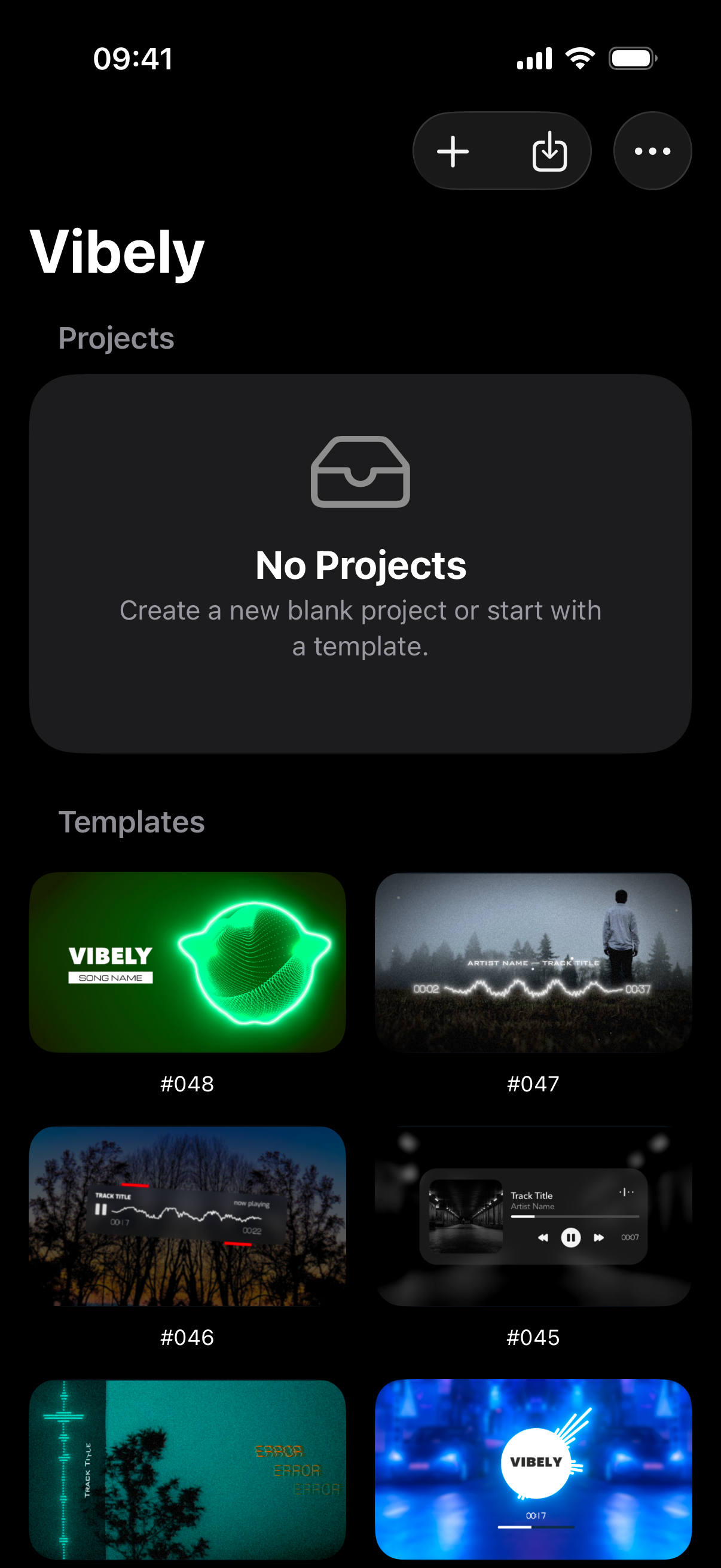
1New Blank Project
The + button opens an empty project. Add a song first, then build it up layer by layer. A blank project is only kept once it has a song.
2Import Template
Opens a template file someone shared with you, made with Share as Template. It opens as a new project with Vibely's demo song.
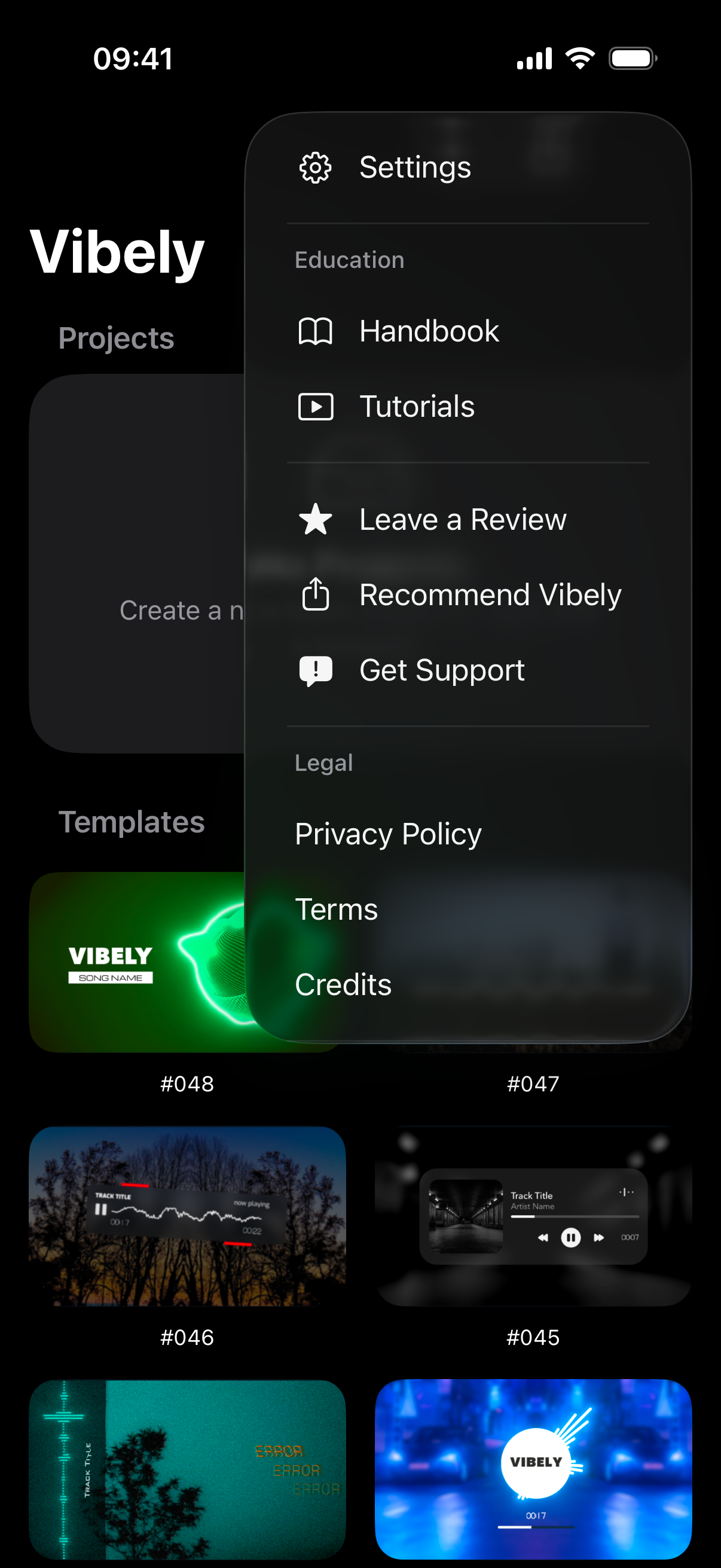
3Menu
The ⋯ button holds:
- Settings
- Education: the Handbook you are reading, and Tutorials with step-by-step guides. Both open on this website.
- Leave a Review and Recommend Vibely
- Get Support, to write to us
- Legal: the Privacy Policy, the Terms and the Credits for the music, photos, fonts and code Vibely uses
4Projects
Before you make your first project, the section says No Projects. After that it lists your projects, newest first. Each row shows a picture of the project, its name, its shape (such as 9:16 or 16:9) and when you last changed it.
Tap a project to open its menu:
- Open opens it in the editor.
- Rename gives it a new name.
- Duplicate makes a copy you can change without touching the original.
- Share as Template saves the project as a template file you can send to a friend or keep as a starting point. The file keeps the layers and effects. Your song becomes Vibely's demo song, the background video is left out, and your own pictures become the Vibely logo.
- Delete removes the project after you confirm.
You can also swipe a project to the left to delete it.
The list shows your five most recent projects. When you have more, Show All at the end of the list shows every project, and Show Less folds it again.
5Templates
The quickest way to start. Every numbered card is a finished design you can make your own.
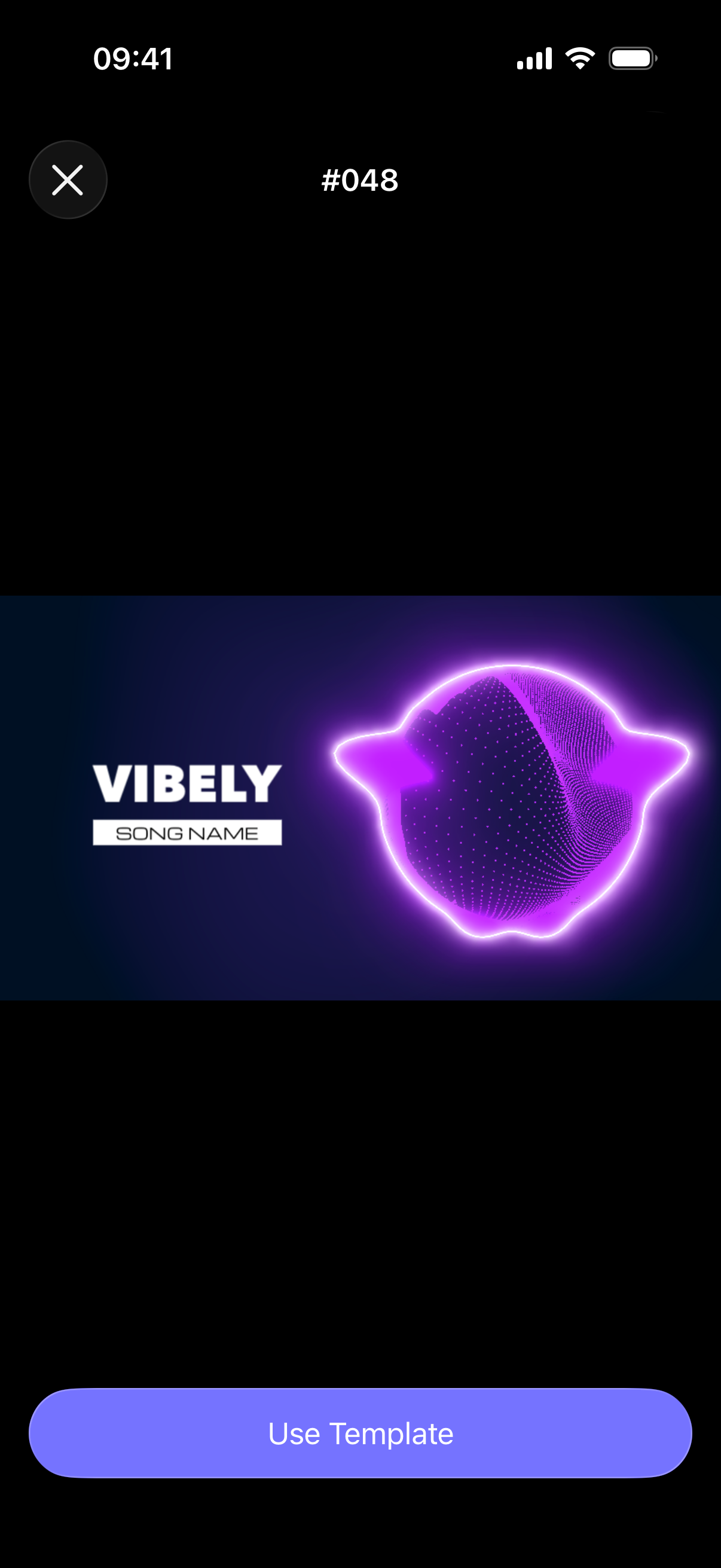
Tap a template to see it play with Vibely's demo song. Tap the video to pause it. When you like it, tap Use Template: Vibely makes a new project from it and opens it in the editor, where you swap in your own song. Close the preview with the X to keep browsing; nothing is saved until you use a template.
Still have questions?
If you didn't find what you were looking for, write to us or ask the community. We're happy to help.
Written for Vibely 4.0.2