The editor at a glance
The editor is where a project comes together. It opens when you open a project, use a template or start a blank one. The video plays at the top, the timeline sits below it, and the buttons along the top and bottom change with what you have selected. Vibely saves your work as you go.
With nothing selected
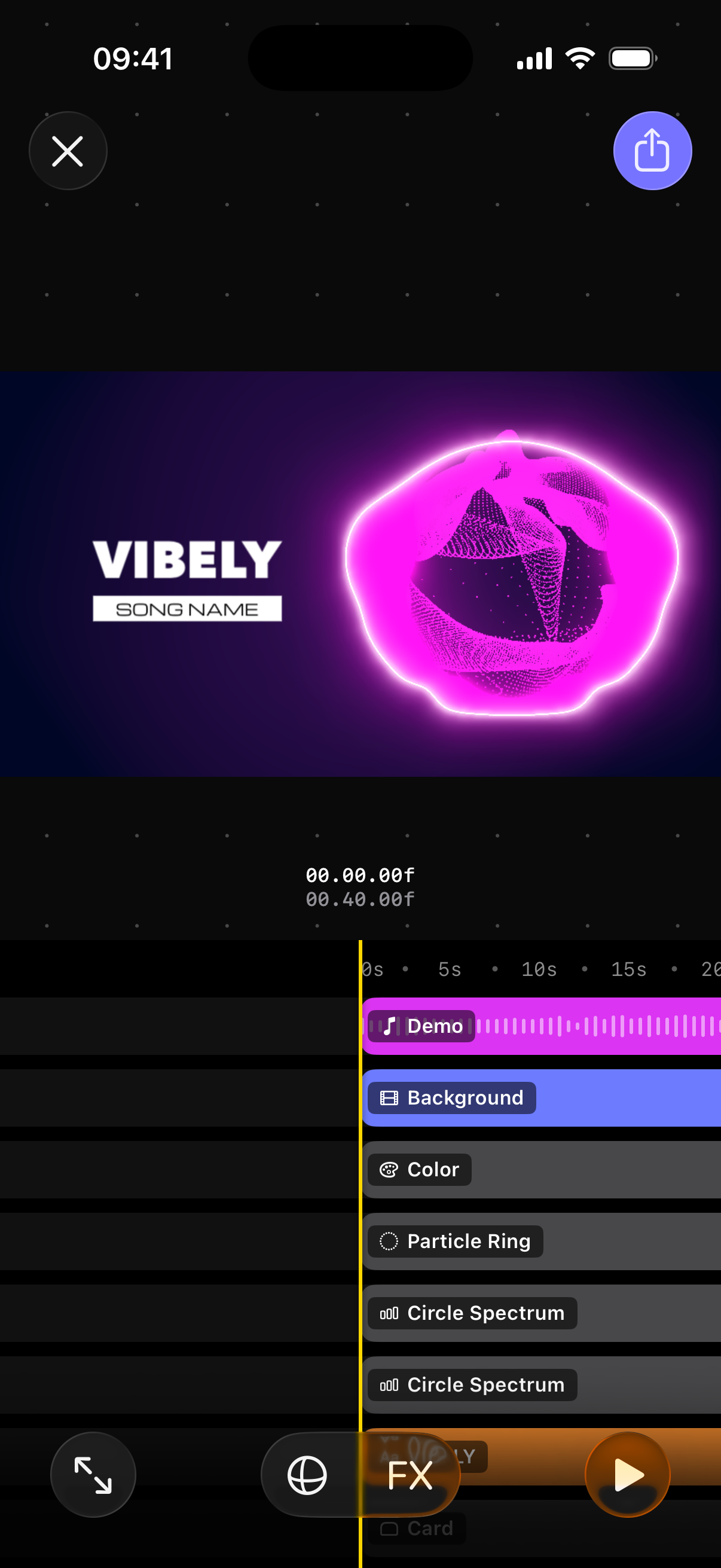
1Close
Takes you back to the Projects screen. Your project is already saved, so there is nothing to confirm.
2Export Settings
Opens the export settings: the Resolution (from SD up to UHD, with its size in pixels), the Frame rate (30 or 60 FPS) and an Estimated file size. Tap Export there to make the video. Exporting needs Vibely Pro.
3Preview
Your video as it will look. Select a layer and you can drag it here to move it, or pinch to resize it.
4Current time
Where you are in the video, over its whole length, in minutes, seconds and frames.
5The song row
The first row of the timeline is your song, with its name and its waveform. Tap it to open the Music panel: Replace Music picks another song (from Files, from a video, or from elsewhere), Trim chooses the part of the song that plays, and Audio Mix fades the song in and out.
6The background row
The background video, always the second row, showing the video's frames once you have chosen one. Tap it to select it, then use its Settings to choose a video from Photos, frame it (Fill, Fit or Stretch) and loop it.
7Layers
Every visual in your video is a layer: spectrums, particles, text, your cover art and more. Each row is one layer, drawn over the ones above it.
- Tap a row to select the layer.
- Drag the handles on either end of a selected row to change when the layer starts and ends.
- Touch and hold a row to move it in time, or drag it up or down to change which layer is in front.
- Pinch the timeline to zoom in and out.
Add Layer is the last row of the timeline. Scroll down to reach it.
8Full-Screen Preview
Plays your video over the whole screen, without the editor around it.
9Camera
The shape of your video, under Orientation: 9:16 Portrait for TikTok, Reels and Shorts, 16:9 Landscape for YouTube, and 4:5, 1:1, 4:3 and 21:6. Below it, the camera that looks at your layers: Turn, Tilt, Distance and Field of view, with Reset Camera to start over.
10Effects
Effects for the whole video, such as glow, blur, VHS or camera shake. Layers have effects of their own too.
11Play
Plays and pauses the video with your song. It stays in the same place whatever you have selected.
With a layer selected
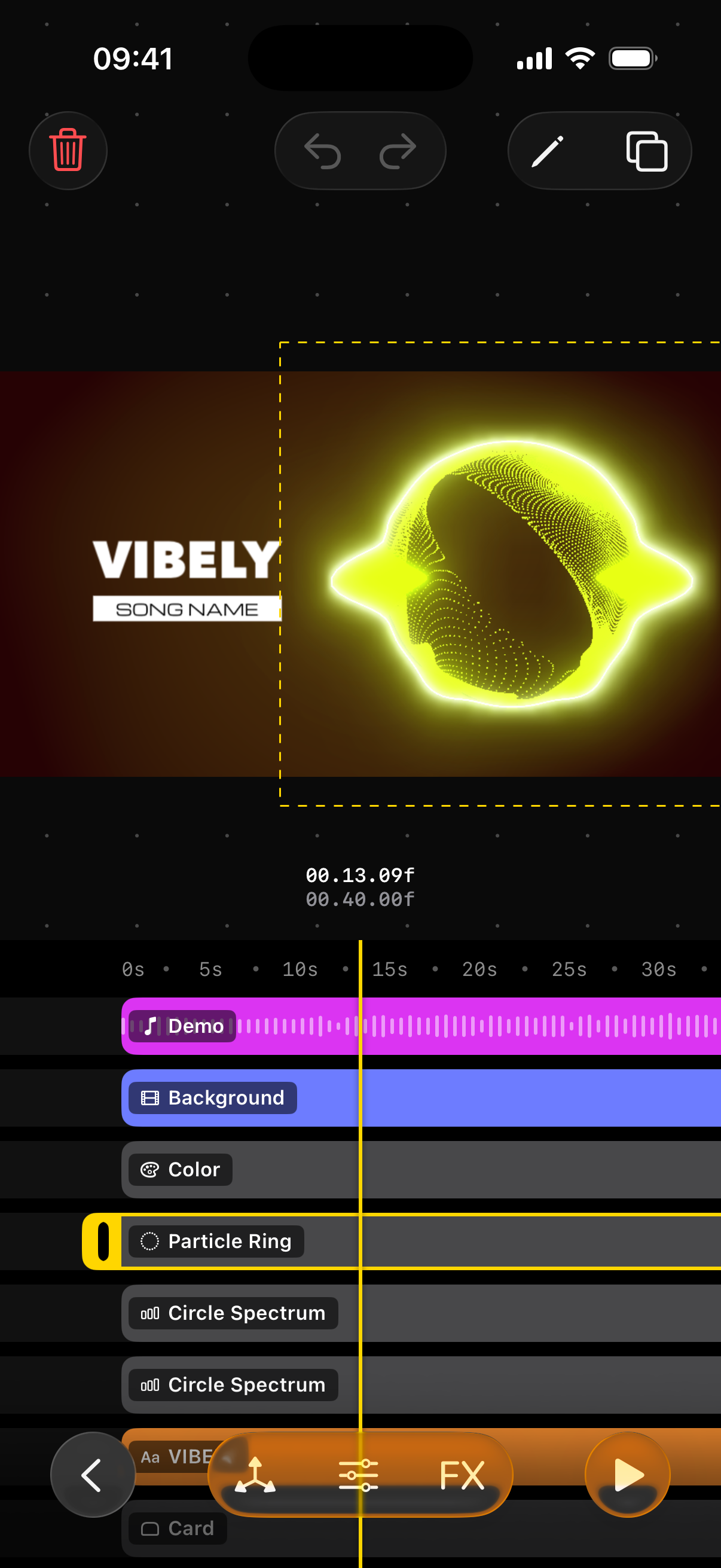
1Delete
Removes the layer, after you confirm.
2Undo and Redo
Step back and forward through your changes to this layer, from when you selected it.
3Rename
Gives the layer a name of its own, shown on its row. Text and image layers have no Rename: their rows show their words or their picture instead.
4Duplicate
Makes a copy of the layer, with the same settings and effects.
5The layer's box
The dashed box shows where the layer sits. Drag inside the preview to move it, and pinch to make it bigger or smaller.
6The selected row
Outlined in yellow, with a handle on each end for trimming.
7Back
Deselects the layer and brings back the buttons for the whole video.
8Placement
Where the layer sits and how it moves: its size, rotation and angles, how much it pulses with the beat, and its opacity.
9Settings
Everything that makes this layer what it is: colours, shapes, how it reacts to the music. Each kind of layer has its own.
10Effects
Effects on this layer alone, such as a glow around a spectrum.
11Play
The same Play button, in the same place.
Still have questions?
If you didn't find what you were looking for, write to us or ask the community. We're happy to help.
Written for Vibely 4.0.2