
How to make your first music visualizer video on iPhone
22 October 2026
The quickest way to a music visualizer is to start from a template: a finished design that already moves with the music. You swap in your song, and Vibely does the rest. This takes about five minutes.
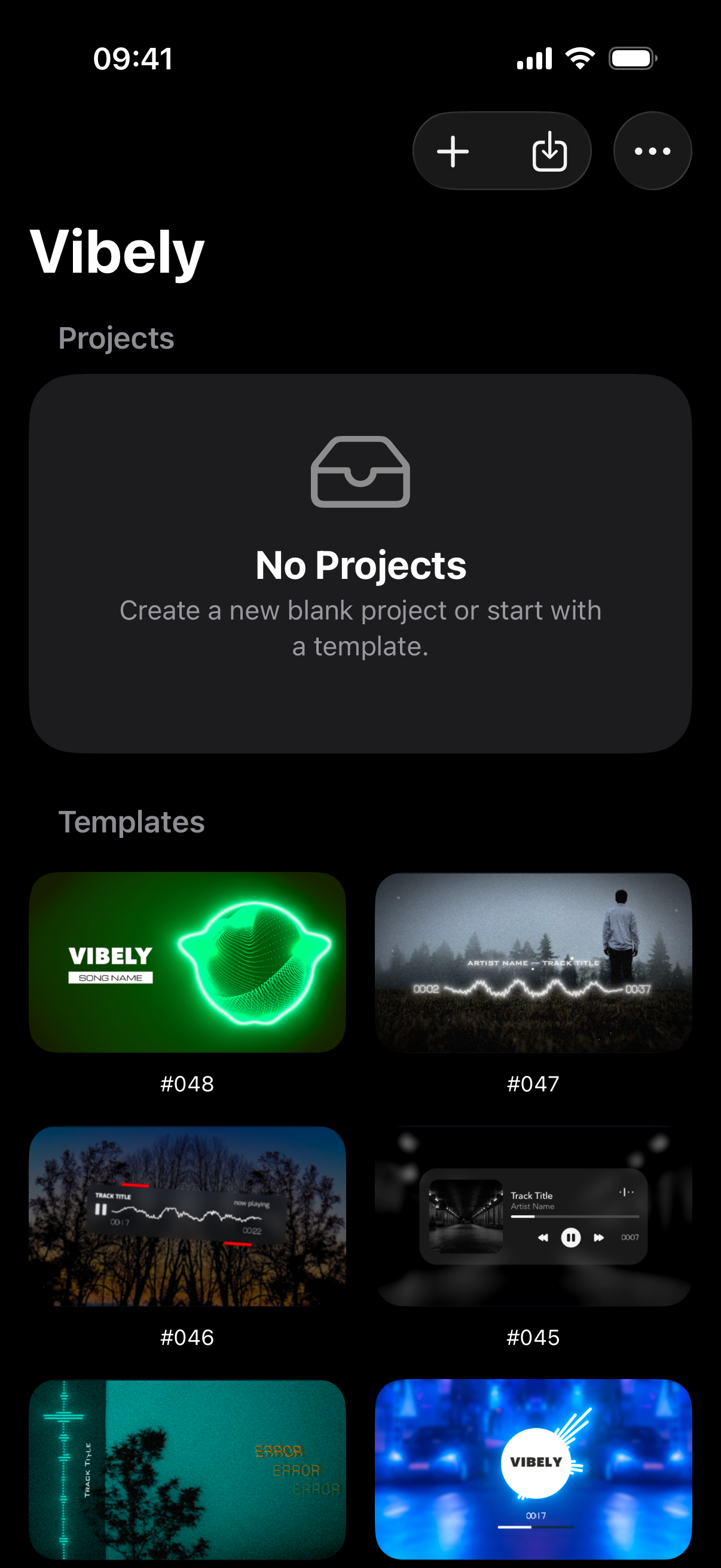
Open Vibely. Under Templates, tap the one you like.
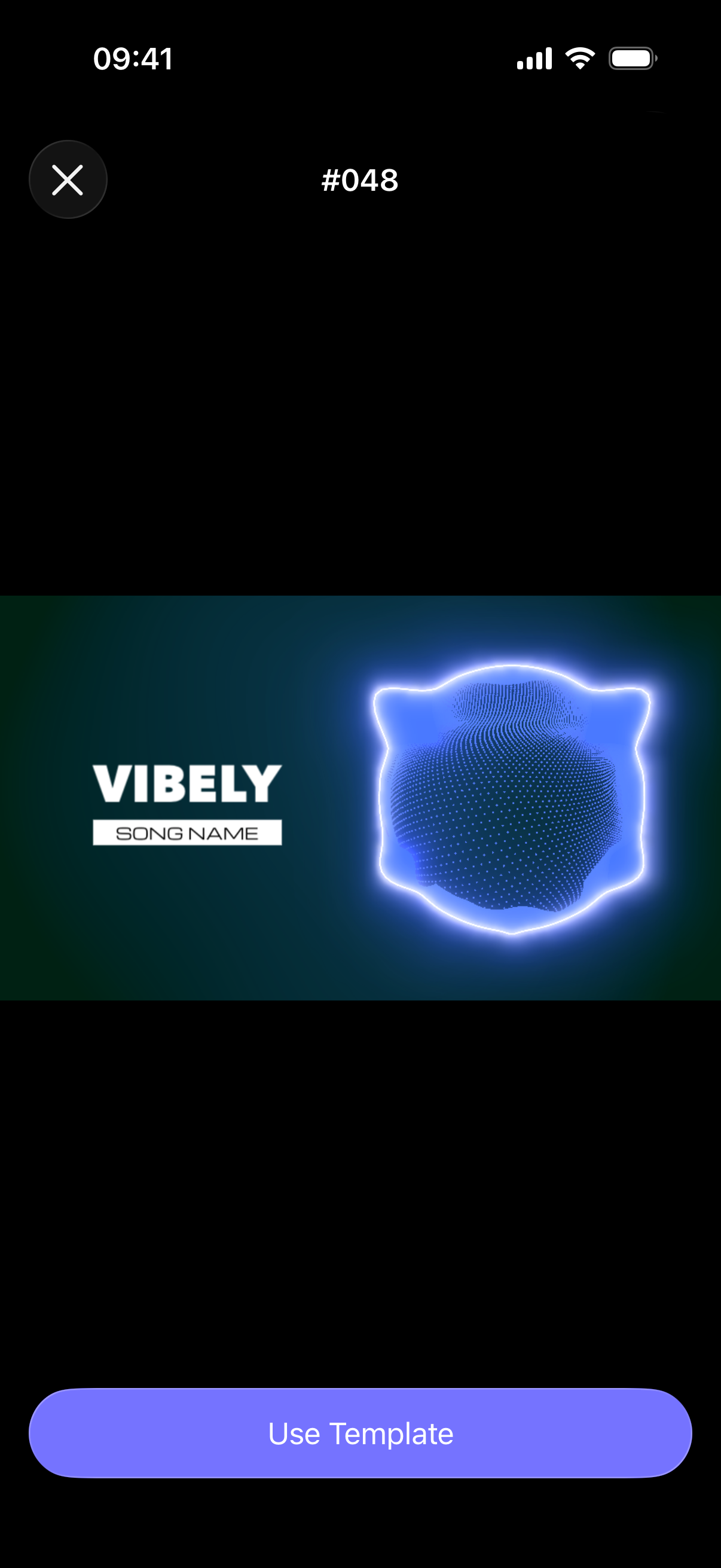
The template plays with Vibely's demo song. If you like it, tap Use Template. If not, close it with the X and try another: nothing is saved until you use one.
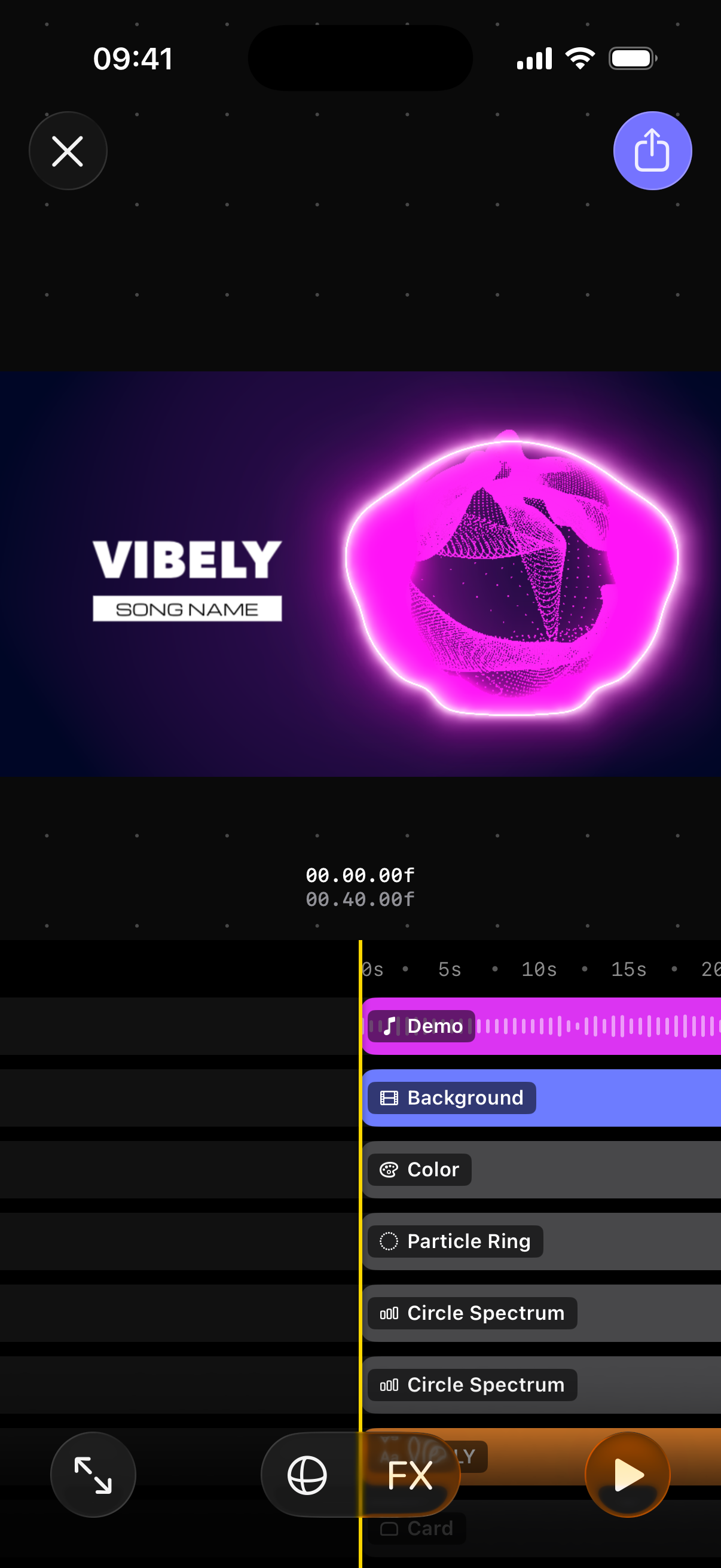
Your project opens in the editor. To use your own song, tap the song row, the first row of the timeline.
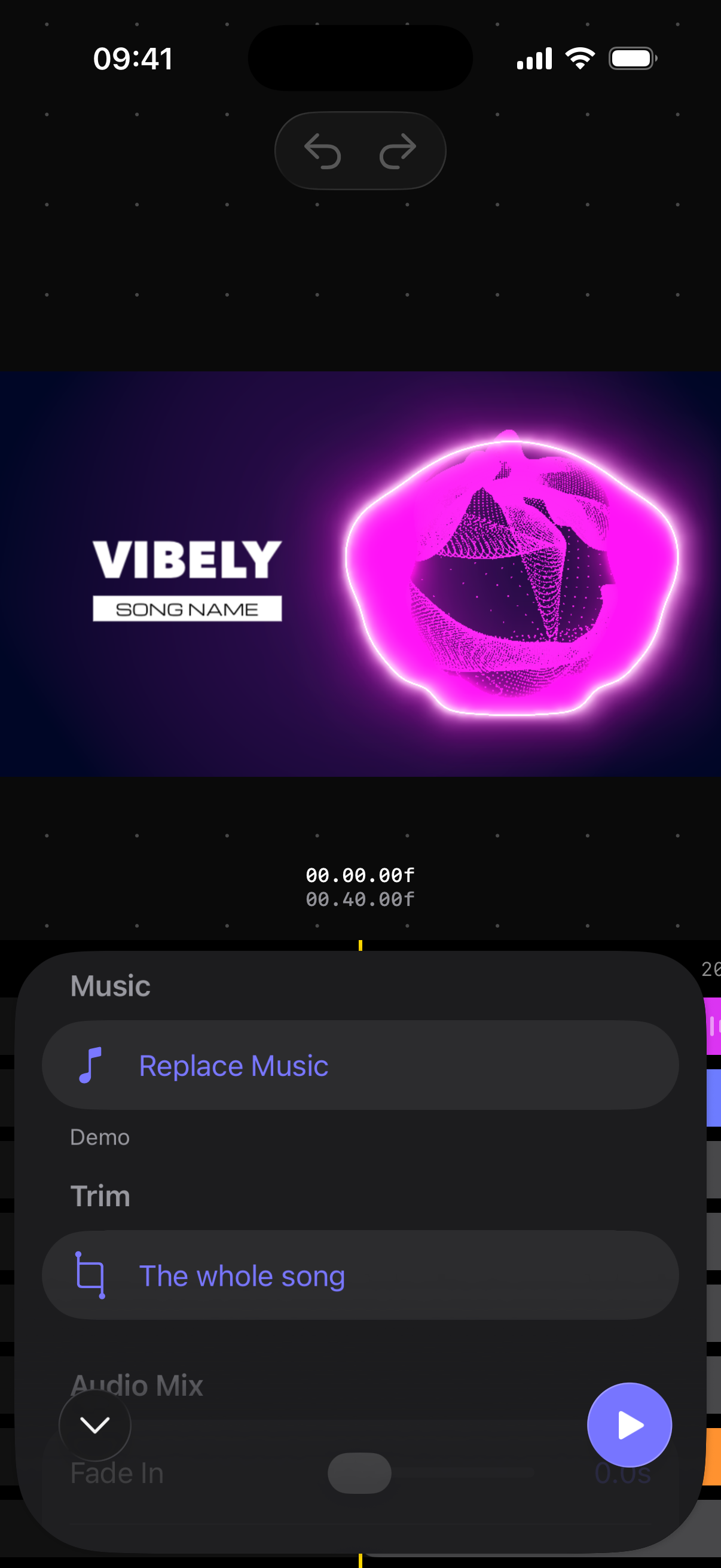
In the Music panel, tap Replace Music.
Pick where your song is:
- Files: an audio file on your iPhone or in iCloud Drive.
- Extract From Video: the sound of a video in Photos.
- Elsewhere: how to bring in a song from another app.
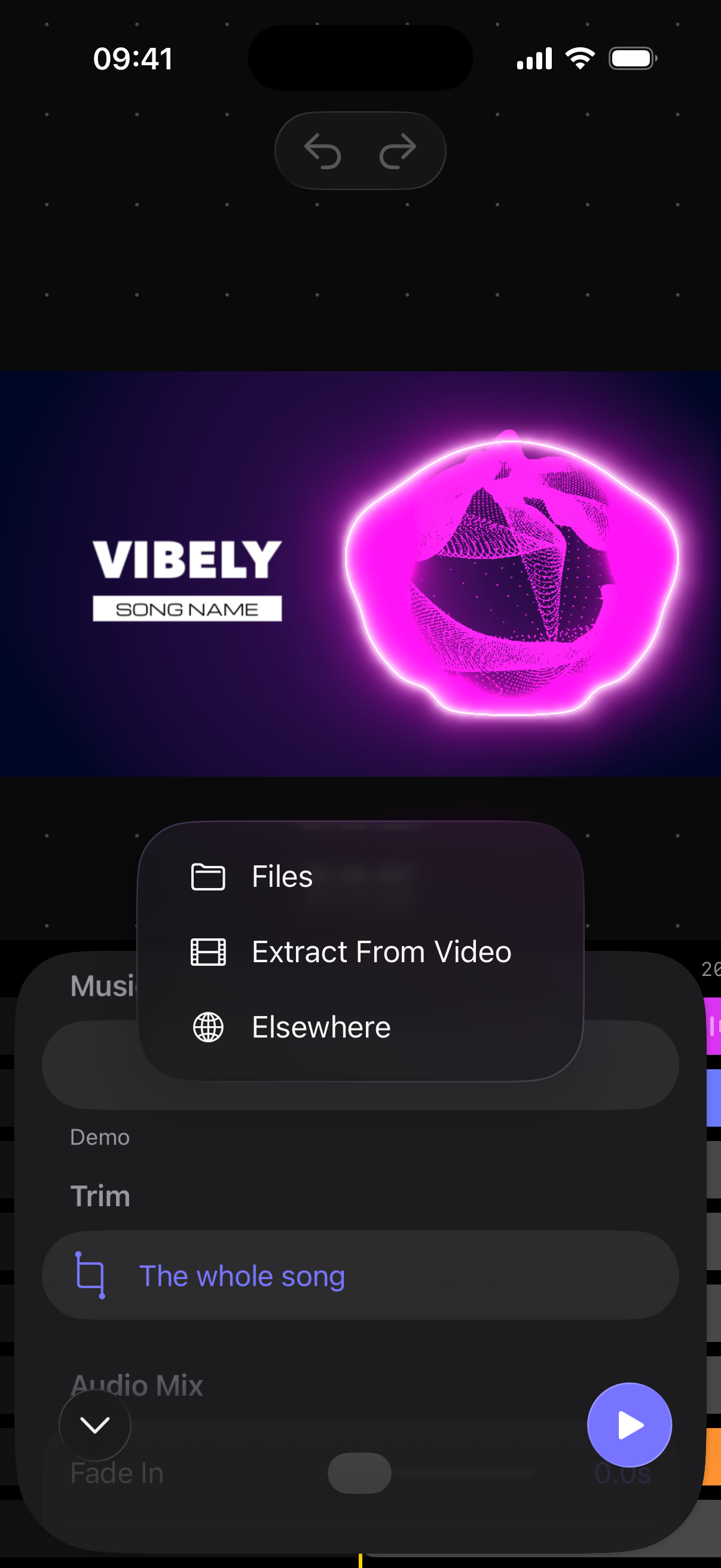
The template keeps its look and now moves to your song. Close the Music panel with the arrow at its bottom left.
Tap Play to watch it with your song.
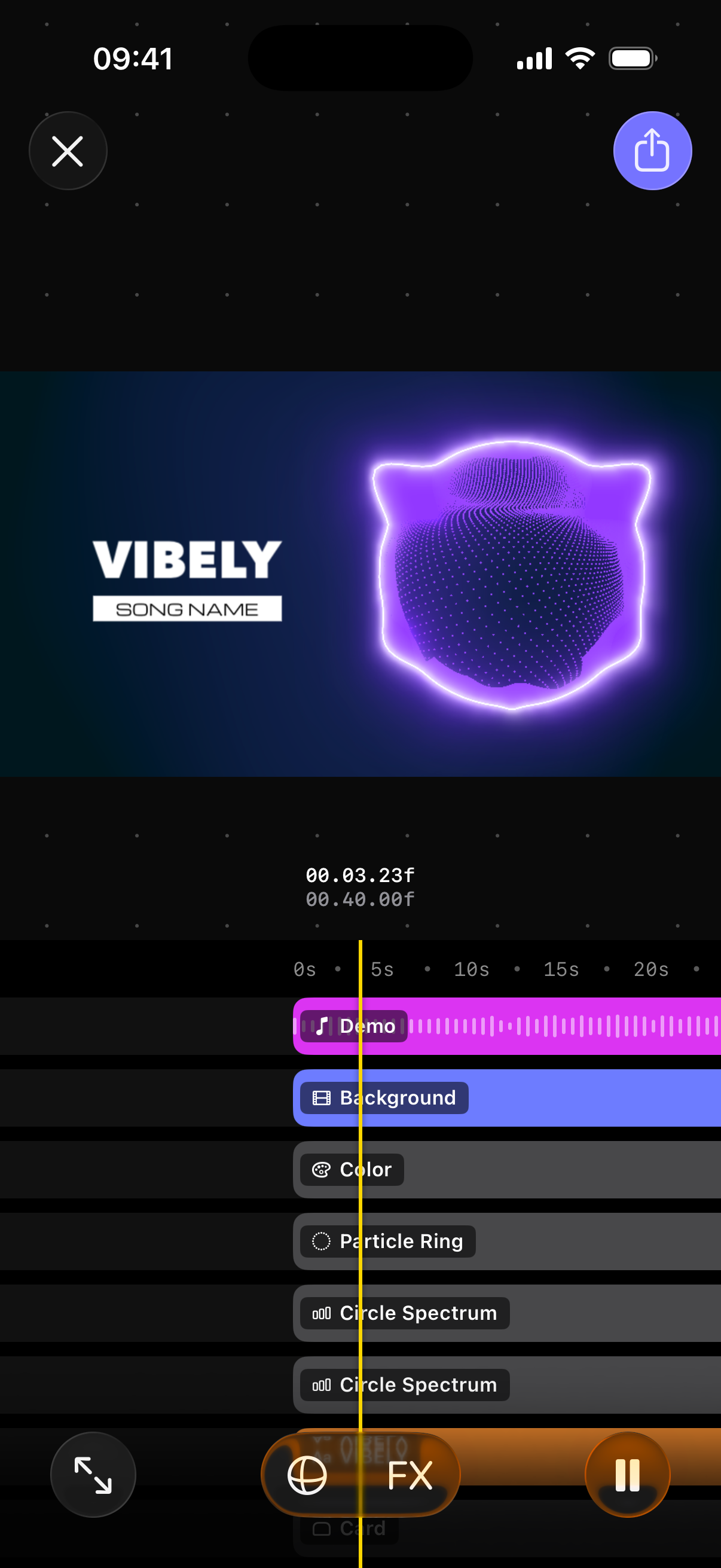
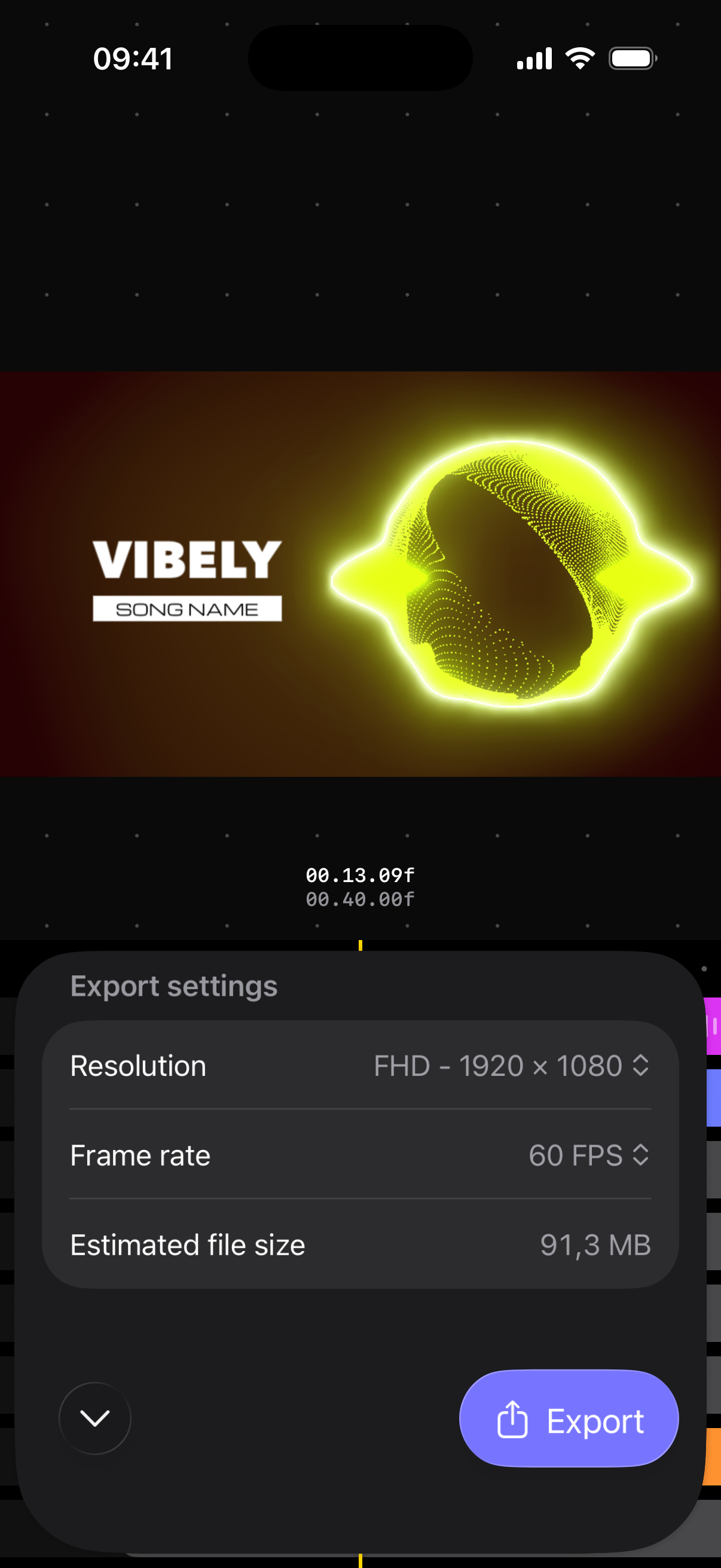
When you're happy with it, tap the purple button at the top right. Check the Resolution and Frame rate, then tap Export.
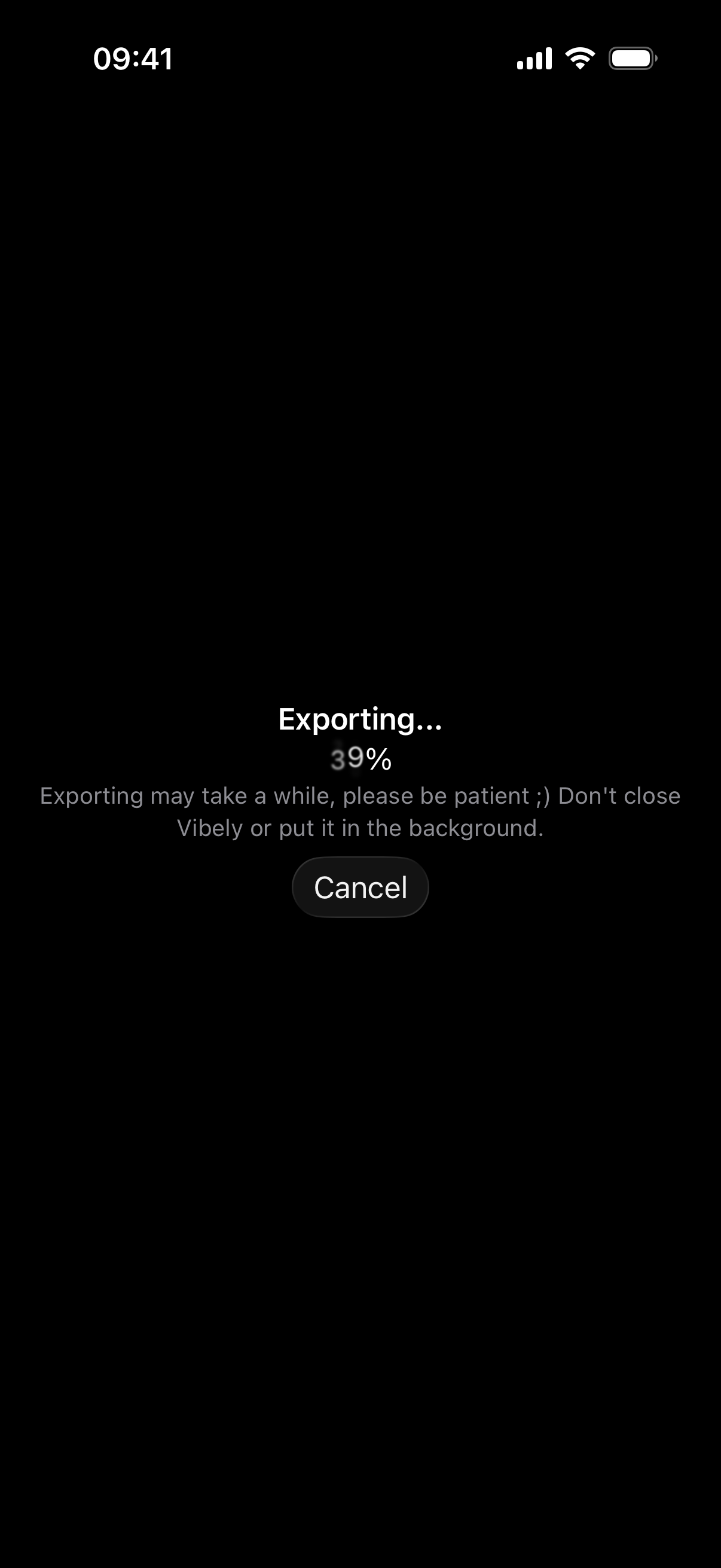
Vibely makes your video. Keep the app open until it's done.
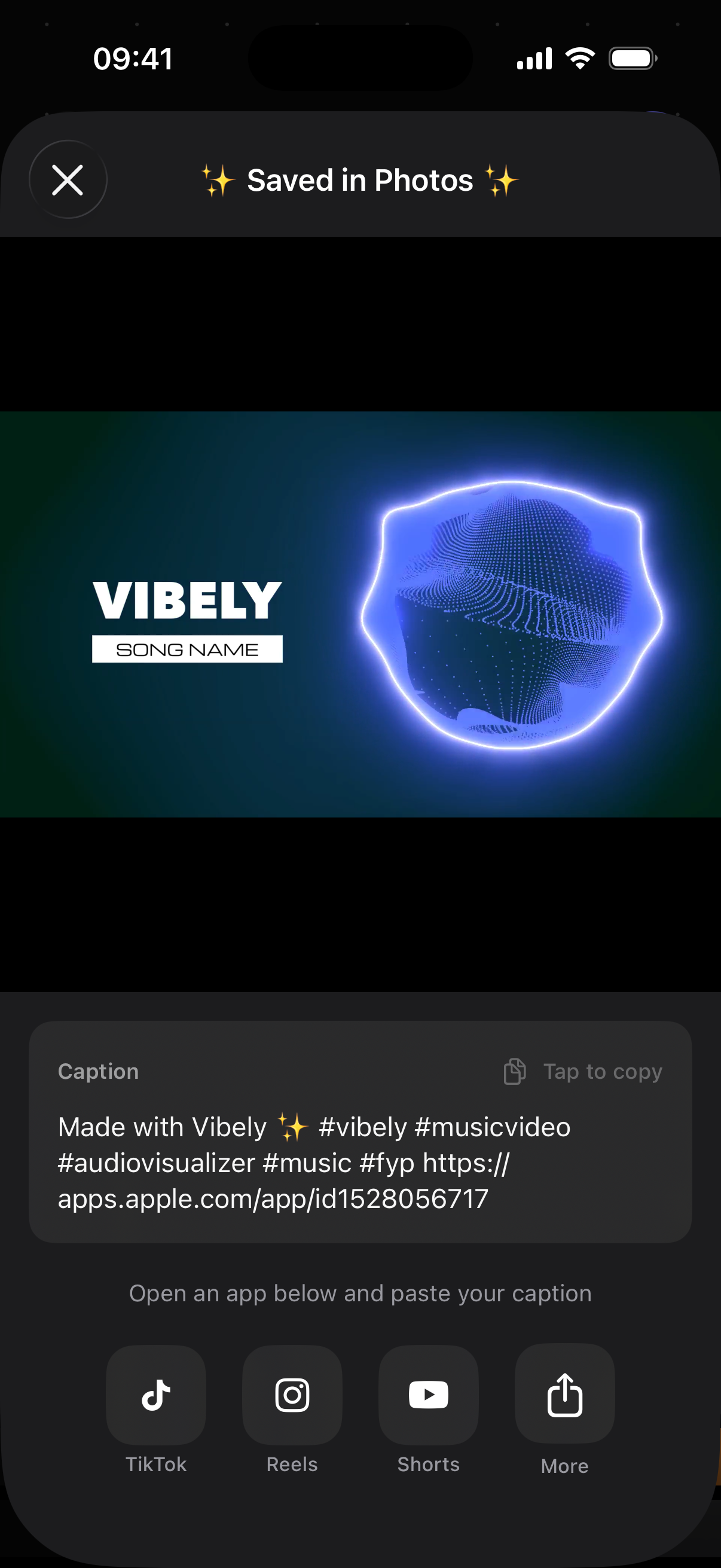
Your video is saved in Photos. Tap the caption to copy it, then tap TikTok, Reels, Shorts or More to post it.
Next steps
Your template is a starting point. Change its colours, add your cover art or the song title, or add more layers: the handbook explains every part.
Learn more about projects and templates
Still have questions?
If you didn't find what you were looking for, write to us or ask the community. We're happy to help.